> ## Documentation Index
> Fetch the complete documentation index at: https://docs.bezi.com/llms.txt
> Use this file to discover all available pages before exploring further.
# Usage Analytics and Limits
View Member's usage metrics, track adoption patterns, and set credit limits in the Usage dashboard.
Per-Member usage data and limits are only available on Enterprise plans.
## What’s usage analytics and limits?
Enterprise account Admins can now view usage data and set usage limits per team member.
Members can view their credit usage and limits and request more credits in their [Accounts](https://app.bezi.com/account) dashboard.
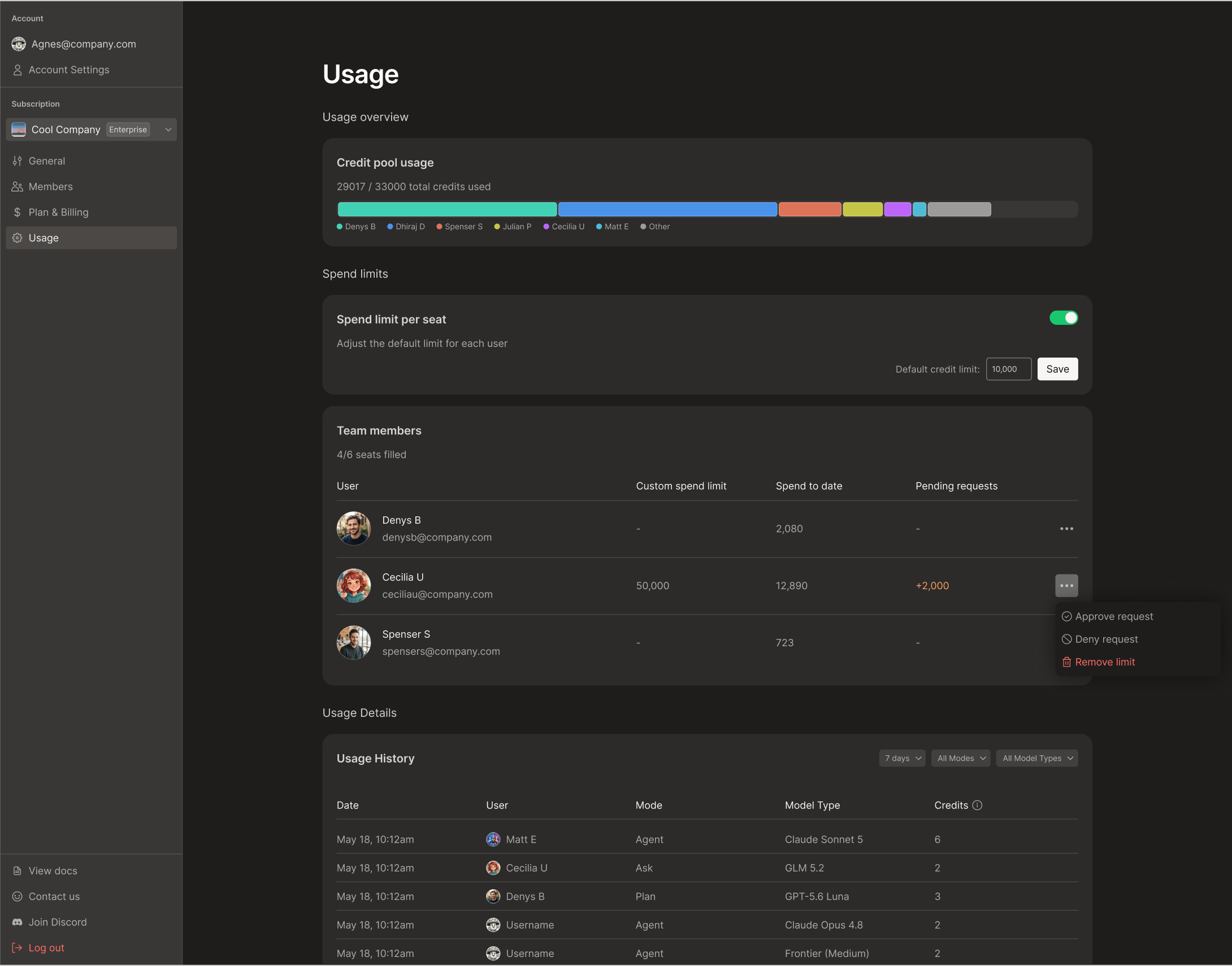 ## Data Access by Role
| | Admin | Member |
| ----------------------------------------------------------------------------------------------------------------------------------- | -------------------------------- | --------------------------- |
| **Usage Overview**
## Data Access by Role
| | Admin | Member |
| ----------------------------------------------------------------------------------------------------------------------------------- | -------------------------------- | --------------------------- |
| **Usage Overview**
Total Credit Pool and Credit Usage | Usage breakdown
per member | No per-member
details |
| **Member Credit Limits**
Custom Limits, Usage to date, Pending Requests | Table of all
Member data | Only their data |
| **Usage History**
Every prompt with the date, mode, model type, credit cost
Filters for time range, mode, and model type | Logs of all
Member data | Only their data |
## Admin Permissions
### Set Member credit limits
1. Confirm you are the account Admin
2. Open the [Account](https://app.bezi.com/account) page > select the organization
3. Open `Usage` > scroll to Credit Limits section
4. Turn on **Credit Limit per Seat**
5. Enter a default **Credit Limit** and click `Save`
6. To override the default spend limit for a member, locate their row in the **Team Member** **table** and add a **Custom Credit Limit** number
### Approve Member credit requests
**Members cannot prompt Bezi once they hit their credit limit**. To continue using Bezi, the Admin must open [Account](https://app.bezi.com/account) dashboard and either:
1. Increase the member’s credit limit (can adjust the Default or the Custom Credit Limit)
2. Approve the Member’s request for more credits
When a Member requests extra credits, Admins receive an email. In the Dashboard, Admins will see a **Pending request** next in the member’s **Team Member Credit Limits** row (for example, +2,000). Click `...` in their row to approve or deny the request.
If your organization's total credit pool is exhausted, approving a request won’t add more credits to the total pool. The Admin will need to contact the org’s Bezi account contact to purchase additional credits.
### Edit or remove a custom limit
Credit limit changes will take effect immediately.
1. Open the [Account](https://app.bezi.com/account) page > select the organization
2. Open `Usage`
3. Find their row in the **Member Credit Limits** table
4. Edit: Change the number in their **Custom Credit Limit** column
5. Remove: Click `...` at the end of their row > `Remove limit`
## **Member Permissions**
### Request more credits if you hit your limit
**You're blocked from prompting Bezi once you hit your credit limit.** Request more credits from the Admin to continue work:
1. Open your [Account](https://app.bezi.com/account) page > select the organization
2. Open `Usage` > scroll to Credit Limits section
3. Click the `...` button next to your row
4. Submit the credit request
5. Account Admins receive an email notifying them of the request - if urgent, ping the Admin directly to speed the approval process