> ## Documentation Index
> Fetch the complete documentation index at: https://docs.bezi.com/llms.txt
> Use this file to discover all available pages before exploring further.
# Connections
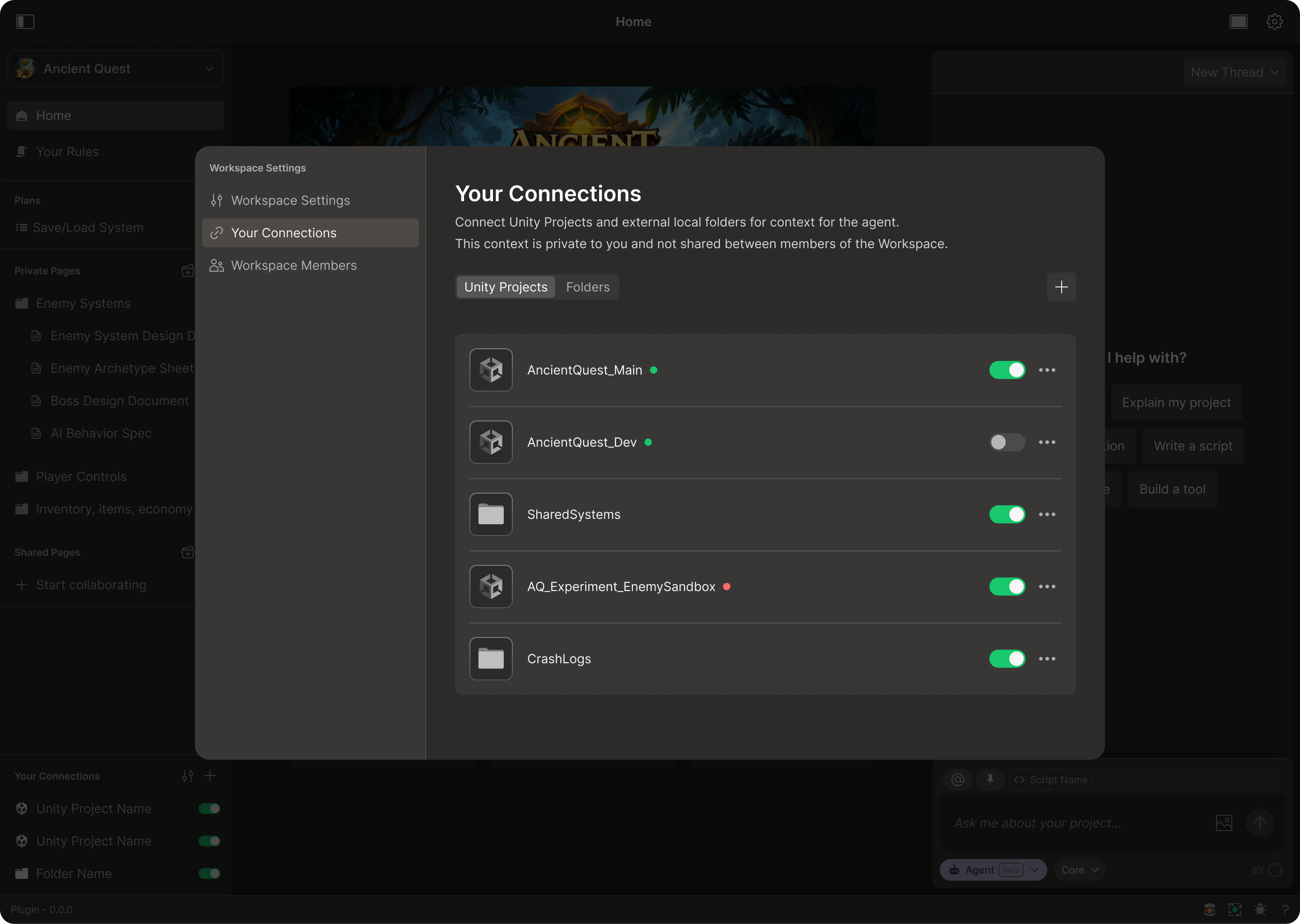
These are the Workspace sources you give Bezi access to read from and write to. A**ll active Connections (other Unity projects, local folders) are available as read-only context for any thread in the same Workspace.** Connections are added and managed from Workspace settings.
Any Connections you add are private to you. Even if you're working in a Team Workspace, other members of the team cannot see or use the Connections you have added.
*Connection isolation is intentional. It ensures each team member can feed their Bezi agent the exact context needed for their work and won't be confused by a colleague's unrelated context.*
## Connection types
Enable Bezi to reference code or systems from a separate source to expedite work on the project or task at hand. All Connections are read-only context, unless they're the set as the thread's **target project**. Learn more about Target Project in [Threads](https://docs.bezi.com/fundamentals/threads).
### Unity projects
> Connect multiple Unity projects to a single workspace. In addition to linking your primary working environment, this is great for adding projects you want Bezi to reference for inspiration, copy systems from, etc..
### Local folders
> Connect any folders from your local filesystem. Great for non-Unity game migrations, asset pipelines, shared utility code, design docs, and any other context you want to give Bezi that lives outside of a Unity project.
## Managing Connections
Each Connection adds context for Bezi; monitor active Connections and disable ones that aren't relevant to a given task.
### Adding Connections
1. Open the **Workspace dropdown** (top of the left sidebar)
2. Select `Workspace Settings`
3. Navigate to **Your Connections**
4. Click `+` and select the Unity project or local folder
 ### Disabling or deleting Connections
Use the toggle to disable a Connection from Bezi. This will prevent it from being included in Bezi's context and being edited in Agent Mode. You can quickly disable and re-enable Connections in the left sidebar as you work.
To permanently remove a Connection from Bezi, open `Your Connections` and select `...` next to the Connection you wish to delete.
### Disabling or deleting Connections
Use the toggle to disable a Connection from Bezi. This will prevent it from being included in Bezi's context and being edited in Agent Mode. You can quickly disable and re-enable Connections in the left sidebar as you work.
To permanently remove a Connection from Bezi, open `Your Connections` and select `...` next to the Connection you wish to delete.