> ## Documentation Index
> Fetch the complete documentation index at: https://docs.bezi.com/llms.txt
> Use this file to discover all available pages before exploring further.
# Proofs
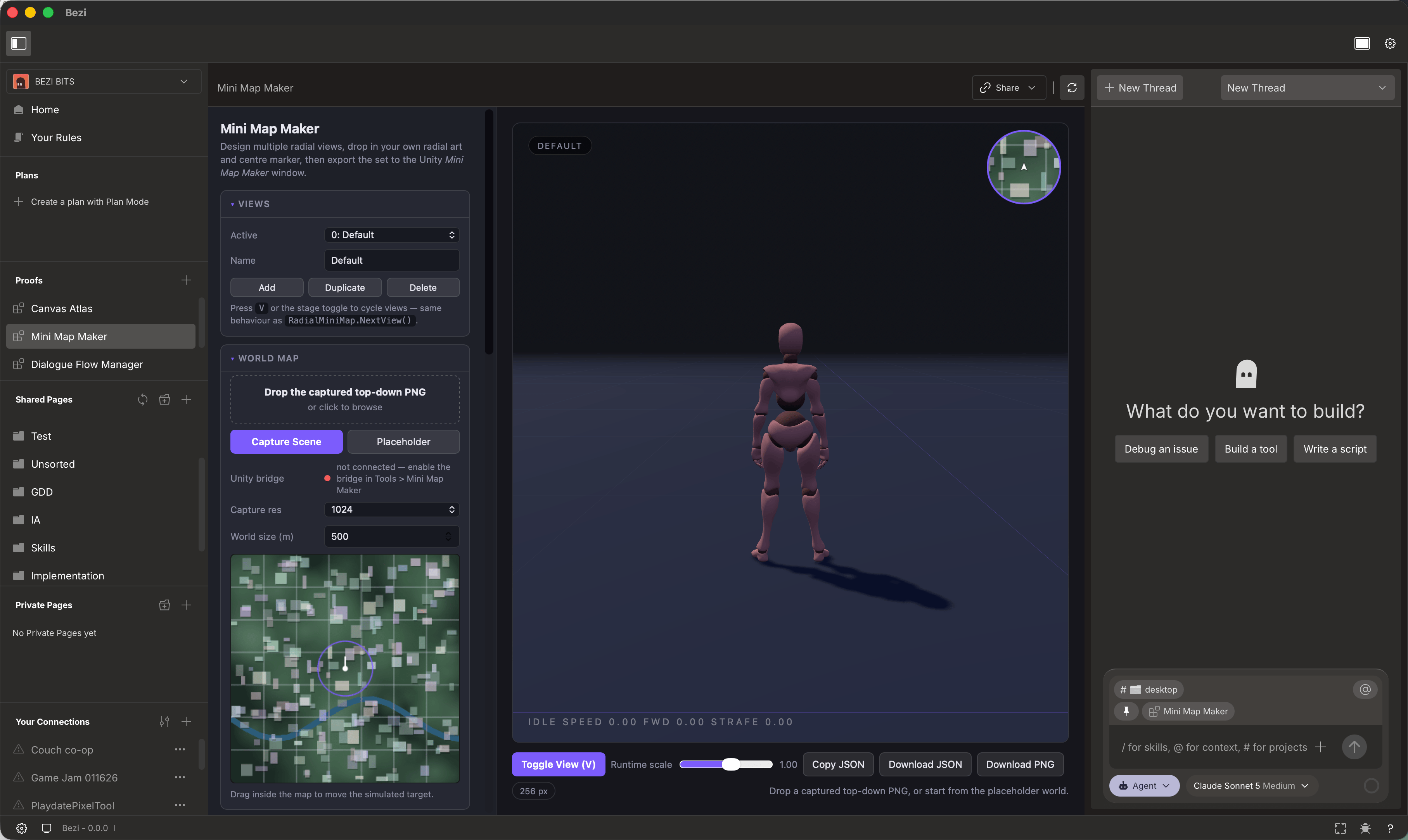
A Proof is an interactive tool or mini application; think about a balancing sheet, chart, or editor, that Bezi creates to assist in game development work. It’s a visual canvas you can interact with, iterate on, and use as rich context beyond chat for in-engine implementation.
Just as your work usually involves Bezi generating Plans or Pages, a Proof is another output and input type so you can quickly find out whether an idea works before you commit to building it in the engine.
Browse the [Proofs Gallery](https://bezi.com/proofs) to see what people have made, or start from one of the template Proofs in the app.
## When to use Proofs
Use Proofs for work that needs richer inputs than text. Their functionality; click buttons, filter data, drag elements, is up to you. Prompt Bezi to add whatever you need.
**Proof examples:**
* **Dialogue and narrative tools**: a branching dialogue editor you can click through instead of reading as an indented list
* **Data and balance tools**: a weapon balance matrix or economy simulator that translates into Unity data assets
* **Shaders and visual tools**: a shader previewer you can tune and see change live
* **Layout and UI tools**: a drag-and-drop UI layout builder you can hand-off once it's right
* **Reports and dashboards**: interactive charts, heatmaps, other visual data that's hard to describe in chat form
 ## Creating and editing a Proof
Proofs are are lightweight, interactive tools and prototypes rendered in Bezi. They can be created with threads and automatically use Bezi’s context base to inform what’s built.
1. Prompt Bezi what you want. For example, "Create a new Proof for charting @\[data] as a bar graph" or "make a Proof for a simple dialogue tree editor."
2. Bezi generates the Proof; each Proof becomes it’s own page in the section
3. Click on the Proof to review; if good as-is, begin to work
4. Prompt Bezi to edit the Proof output (manual code-editing surface coming later)
## Pushing your changes into Unity from Proofs
Bezi can move your Proof into a Unity project. This works through AI translation, not a live connection: ask Bezi to bring your Proof into the project, Bezi interprets it and auto-creates these changes in-engine.
What carries over depends on the Proof’s contents:
* **Content**: a layout or dialogue tree would translate into matching Unity objects or assets
* **Data or configuration**: a weapon balance sheet, would translates into Unity data assets, like the weapon and enemy ScriptableObjects that use those values
**Pushing the Proof to Unity is a one-time action. Unity will not stay linked to the Proof or reflect changes made after it’s pushed.** A direct, two-way connection between Proofs and the engine is planned for a future release.
Two-way connection workarounds:
1. Ask Bezi to `get Data` or `set Data` on each proof. We use the `getProofDataand` `setProofData` tools. Bezi will add this functionality to the Proof and the in-memory data can be used to translate to Unity without modifying the Proof code or recreating it
2. You can ask Bezi to implement `persistence` of the proof data so it’s saved between reloads
## Sharing a Proof
Neither sharing option supports real-time updates of Proofs. Once a Proof is exported or published as a public link, the shared version cannot be changed. You will need to republish it or reexport to include any changes.
* **Export/Import**: Export a Proof as a .zip and import one someone else shared with you.
* **Publish as public link**: Generate a public link to share a Proof with anyone. **Use the ‘Publish updates’ button.**
## Creating and editing a Proof
Proofs are are lightweight, interactive tools and prototypes rendered in Bezi. They can be created with threads and automatically use Bezi’s context base to inform what’s built.
1. Prompt Bezi what you want. For example, "Create a new Proof for charting @\[data] as a bar graph" or "make a Proof for a simple dialogue tree editor."
2. Bezi generates the Proof; each Proof becomes it’s own page in the section
3. Click on the Proof to review; if good as-is, begin to work
4. Prompt Bezi to edit the Proof output (manual code-editing surface coming later)
## Pushing your changes into Unity from Proofs
Bezi can move your Proof into a Unity project. This works through AI translation, not a live connection: ask Bezi to bring your Proof into the project, Bezi interprets it and auto-creates these changes in-engine.
What carries over depends on the Proof’s contents:
* **Content**: a layout or dialogue tree would translate into matching Unity objects or assets
* **Data or configuration**: a weapon balance sheet, would translates into Unity data assets, like the weapon and enemy ScriptableObjects that use those values
**Pushing the Proof to Unity is a one-time action. Unity will not stay linked to the Proof or reflect changes made after it’s pushed.** A direct, two-way connection between Proofs and the engine is planned for a future release.
Two-way connection workarounds:
1. Ask Bezi to `get Data` or `set Data` on each proof. We use the `getProofDataand` `setProofData` tools. Bezi will add this functionality to the Proof and the in-memory data can be used to translate to Unity without modifying the Proof code or recreating it
2. You can ask Bezi to implement `persistence` of the proof data so it’s saved between reloads
## Sharing a Proof
Neither sharing option supports real-time updates of Proofs. Once a Proof is exported or published as a public link, the shared version cannot be changed. You will need to republish it or reexport to include any changes.
* **Export/Import**: Export a Proof as a .zip and import one someone else shared with you.
* **Publish as public link**: Generate a public link to share a Proof with anyone. **Use the ‘Publish updates’ button.**