
What can be pinned in a prompt?
Any context Bezi gathers can be referenced in a prompt. This includes:- In-Unity context: any asset in your Scene or Project Folder, e.g. scripts, models, in-scene gameobjects, etc.
- In-Bezi context: Pages
How to pin in a prompt
Type @ while writing the prompt, then the name of what you want to pin
To in-line pin while writing your prompt, type @ then 3+ characters to trigger the search pop-up. The search popup will filter options based on the characters you type.Click the @ icon above the prompt input field
You can find and add pins by clicking on the@icon above the prompt input field. This will open up a popup menu to search in.
Pills: context based pin suggestions
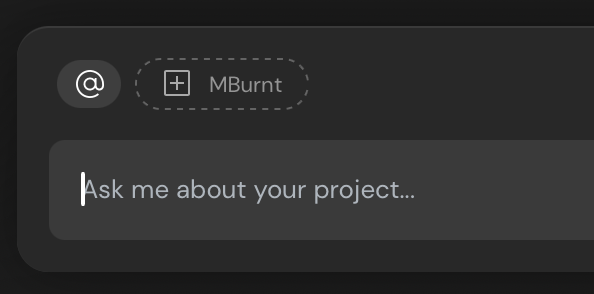
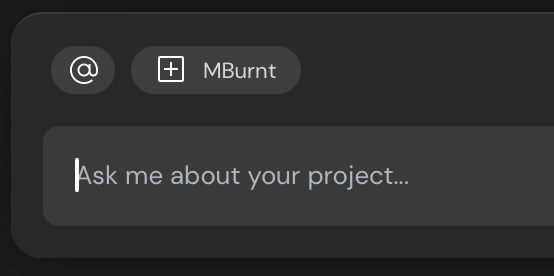
If you select something in your Unity project, Bezi will surface it as a pill (suggested pin) above the prompt input field. You must click the pill to transform it into a pin.Pill (inactive)
Pin (active)
Disabling irrelevant pins
Always review your pins and disable irrelevant ones before submitting a prompt.- Review all the active pins above the prompt input field
- Click the ones you wish to remove
- Confirm the irrelevant pins are gone or returned to pill state (greyed out, dotted border)