
What are skills
A skill packages a repetitive, multi-step workflow into a single command. Bezi runs the skill the same way every time, delivering a more reliable, predictable output with less effort. It’s packaged in a folder with instructions and scripts or reference files. The instructions define the sequence of steps to be taken when the skill is invoked. A single skill can include any combination of the following:- Multi-step procedure, run in a fixed order
- Call an MCP tool to pull in external information
- Scripts or reference files for extra context
What skills are available
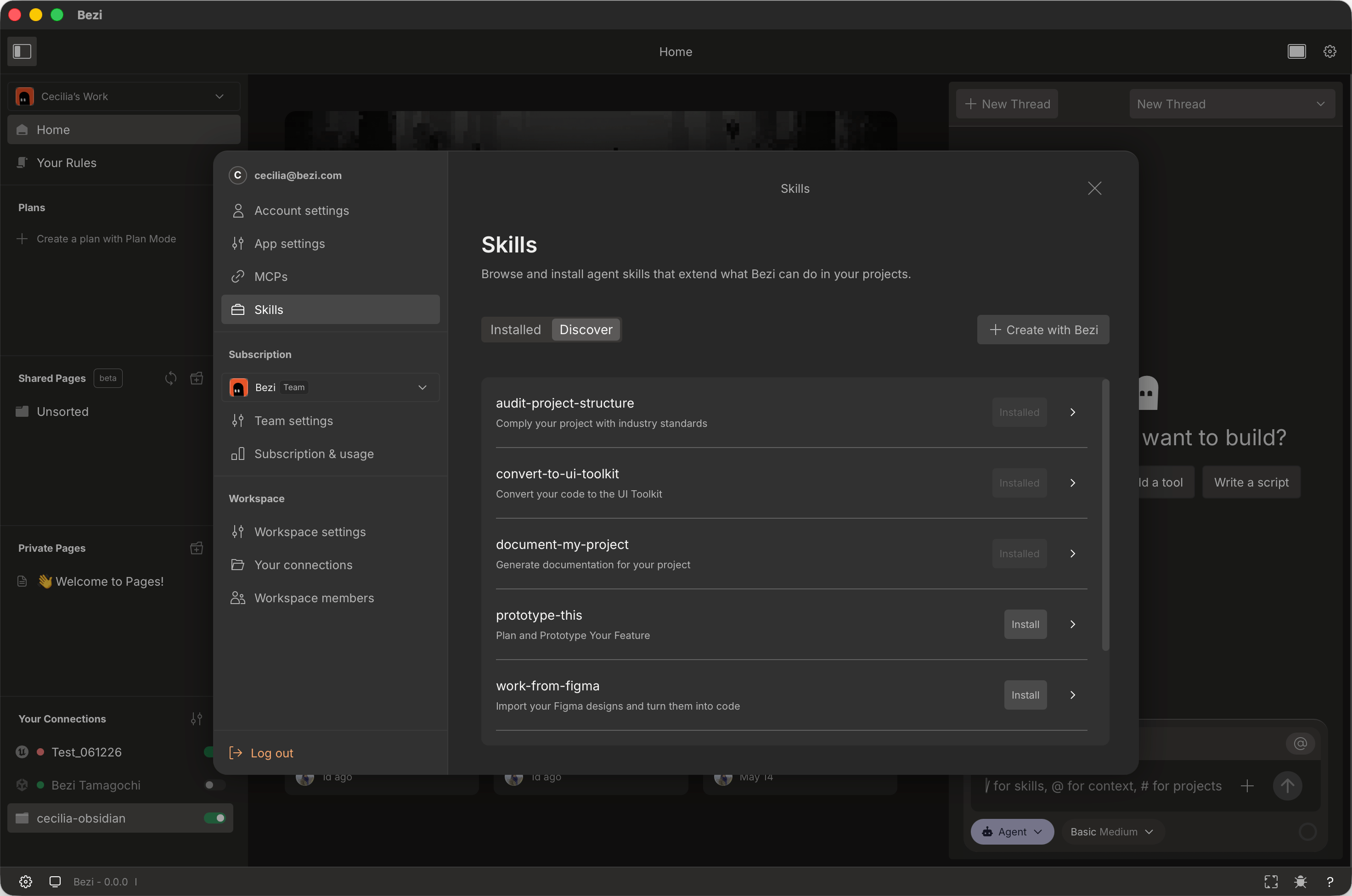
Skills work best when tailored to your workflow. You can create any custom skill you need or edit Bezi default skills.- [default] Implement UGUI - Build UI using UGUI from a screenshot or Figma file.
- [default] UGUI to UI Toolkit - Convert UGUI canvas-based screens to UI Toolkit.
- [default] Create documentation - Scan the project and automatically generate a GDD as organized pages.
- Set up a scene - Drop in your default lighting, camera rig, and environment so every new scene starts the same way.
- Set up an object pool - Generate a reusable pool for a prefab (bullets, enemies, pickups) instead of instantiating at runtime.
- Run a pre-build checklist - Walk through your standard QA checks before you ship a build.
- Pull data into a report - Query an external tool (analytics, issue tracker, docs) and format the results how you want.
- Generate a changelog or release note - Turn recent commits or merged work into a formatted summary your team can read.
- Onboard a new project - Configure a fresh project with your standard settings, dependencies, and structure.
Using Skills
- Install a default skill
- Create a custom skill
- Run
- Edit
- Uninstall
Installing a default skill automatically creates a copy of it on your machine.
- Open Workspace Settings
- Select the
Skillstab - Click the
Discovertoggle to explore skills options - Identify the desired skill and select
Install
Current Limitations
- A skill is either installed or not. To deactivate a skill, you must uninstall it.
- Skills are local, meaning they cannot be auto-shared in Team Workspaces yet. Send a colleague the skill file to give share it.
- Skills can only run JavaScript right now. They can’t run file system, network, or shell access yet. If you’re importing a skill from another AI tool, verify it doesn’t use shell commands before running.