Working with a team? See Team Workspace's single source of truth
What a Workspace contains
Everything below belongs to the Workspace. Meaning that you can work on multiple projects in a single Workspace, and all the information below will remain available.Connections
Multiple projects and external local folders can live in a Workspace. In a Team Workspace, your Connections are private and not visible or accessible by others in the Team. Connections documentationShared and Private Pages
Pages can hold documentation, specs, coding standards, and architecture references. They provide context across everything and everyone in a Workspace. Private Pages mean they’re only visible and act as context for you. Shared Pages are visible to all team members in the Workspace and are automatically incorporated in everyone’s context (only available on Team and Enterprise plans). Pages documentationPlans
Plans are private to you. To share a great Plan with someone in your Team Workspace, convert it to a Page and promote it to a Shared Page. Plan Mode documentationRules
Rules are private to you and apply to all threads and Connections in a Workspace. For Team Workspaces that want standardized Rules, define them in a Shared Page for everyone to copy. Rules documentationThreads
At the start of each thread you’ll declare a Target Project to inform Bezi where to focus. Create a new thread if for each target project and for separate tasks within each. Threads documentationWorkspace structure
Workspaces either belong to a personal account or a Team.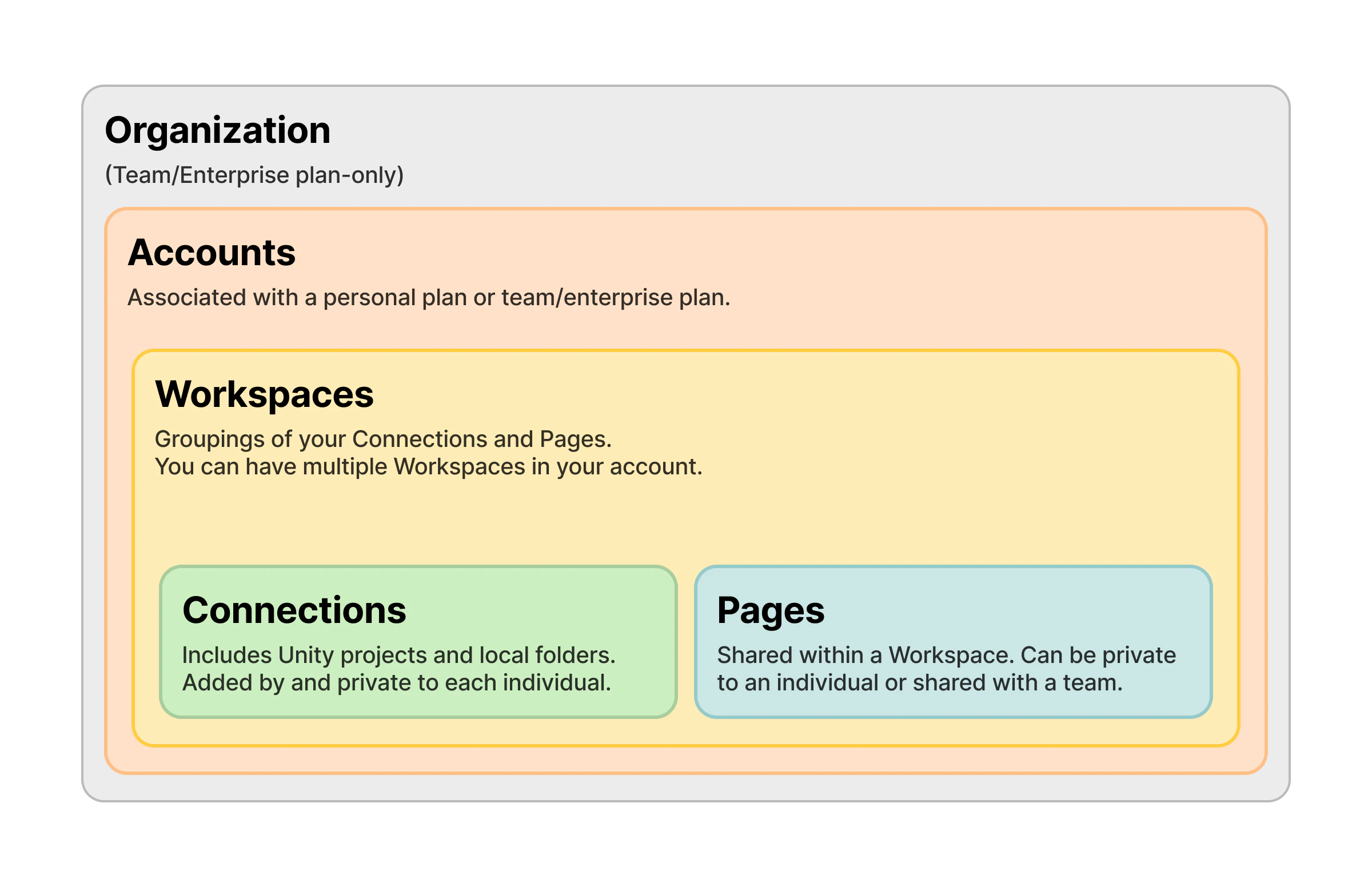
Managing Workspaces
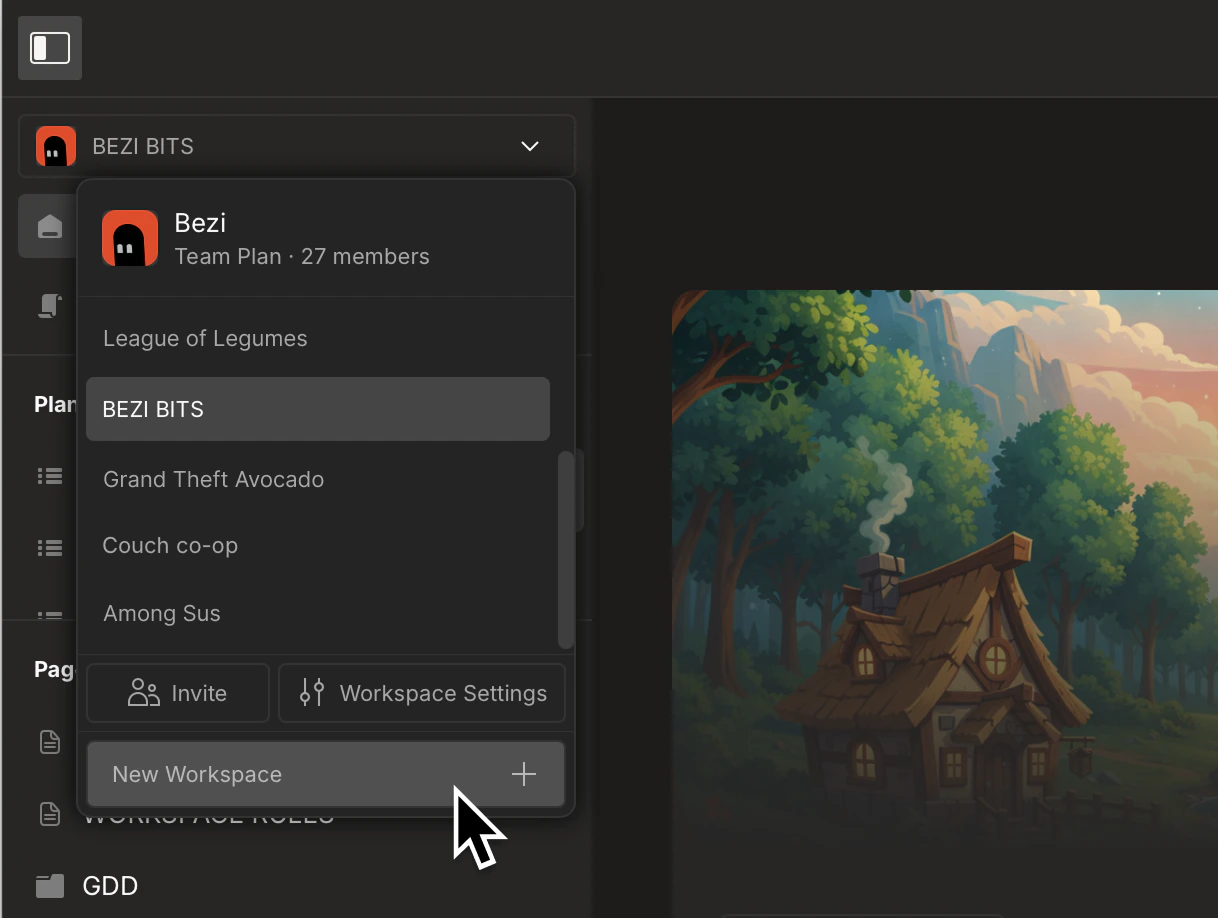
Create a new Workspace
- Open the Workspace dropdown, located at the top of the left sidebar
- Click
New Workspace - To tailor or manage it, open Workspace dropdown >
Workspace Settings
Switch between Workspaces
- Open the Workspace dropdown, located at the top of the left sidebar
- Select the other Workspace you want to open from the list